Managing Extensions with Extension Manager
The Kaapana Extension Manager is a UI component that allows users to discover, install, and uninstall extensions from OCI registries without leaving the Kaapana interface. It is organized into three tabs — Catalog, Extensions, and Repositories — for browsing available extensions, managing installed ones, and registering the OCI repositories that host them. This guide walks through registering a repository, browsing the catalog, and managing installations.
Adding a Repository
Before any extensions can be installed, the OCI repository that hosts them must be registered with the Extension Manager.
Open the Extension Manager in the Kaapana UI.
Navigate to the Repositories tab and click New Repository.
Fill in the repository details:
Name — a display name for the repository
Repository URL — the URL of the OCI repository (e.g.
https://registry.example.com/kaapana/extensions)Description — an optional free-text description
Username and Password / Access token, if the repository requires authentication
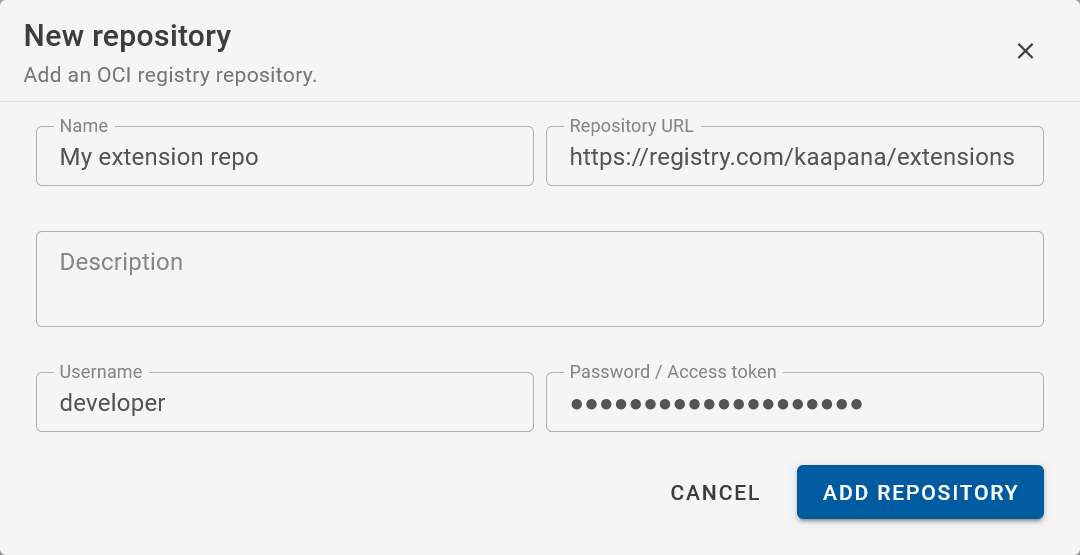
Click Add Repository. The Extension Manager verifies the connection and lists the repository.
Once a repository is registered, the Extension Manager can query it for new and updated extensions.
Browsing the Extension Catalog
All extensions available across registered repositories are listed in the Catalog tab of the Extension Manager. The catalog header shows the number of registered repositories and the total number of available extensions, and can be filtered using the Search catalog field or the Repositories dropdown. Click Fetch from OCI Repositories to refresh the catalog with the latest extensions and versions from all registered repositories.
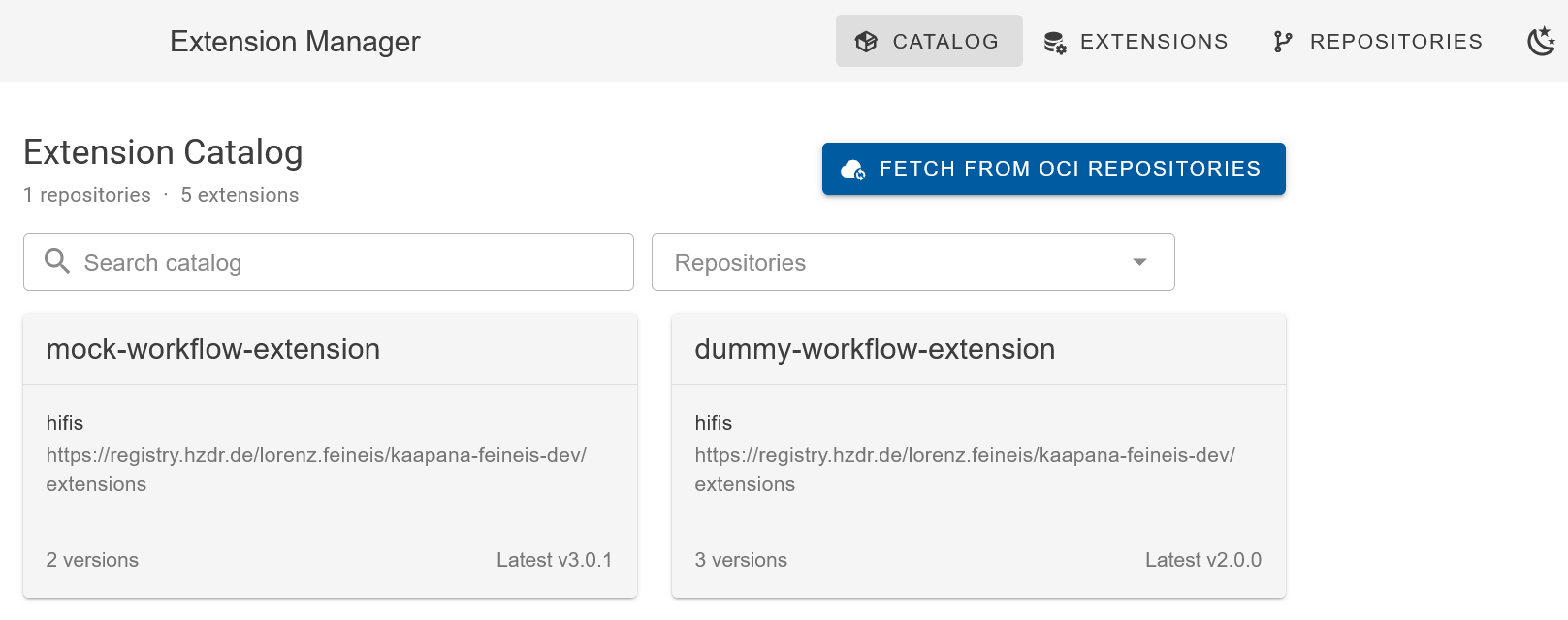
Each extension card shows:
Name and maintainer
Repository URL it was fetched from
Number of available versions and the latest version
Click on an extension to view its full manifest details.
Installing an Extension
In the Catalog tab, find the extension you want to install.
Select the desired version.
Click Install.
The Extension Manager pulls the extension archive from the registry and registers
its contents with Kaapana. For workflow-v1 content, the Airflow DAG becomes
available immediately after installation and can be triggered from the Kaapana
workflow interface.
Note
Installing a workflow extension does not pull processing container images. Container images referenced in the DAG are pulled from their respective registries at the time the workflow is first triggered.
Uninstalling an Extension
In the Extensions tab, find the installed extension.
Click Uninstall.
The Extension Manager removes the extension’s contents from Kaapana. For
workflow-v1 content, the DAG is removed from Airflow. Workflow runs that
are already in progress are not affected.
Updating an Extension
The Extension Manager does not automatically update installed extensions. To update to a newer version:
Uninstall the currently installed version.
Install the new version.